Getting started
Install the IDE, open a project, run a form, and hand someone an executable. Ten minutes, and nothing to configure.
Install
FoxDev Studio is packaged for Windows as an installer (FoxDevStudio-<version>-win-x64.exe)
and as a zip of the runtime the installer lays down (FoxDevStudio-<version>-win-x64.zip).
The installer is the IDE; the zip is what Build Executable copies when it wraps your
application, so the two ship together. Linux builds (AppImage and deb) and a macOS disk image
are produced by the same packaging step, and foxvm-<version>-<os>-<arch> is the
command-line runner on its own.
Releases are published on GitHub under their version tag. Between releases there is a
nightly: a rolling pre-release rebuilt from every push to main, Windows only, versioned
<version>-nightly.<date>.<commit>. None of the packages is signed, so Windows SmartScreen and
macOS Gatekeeper will say so the first time.
Everything the runtime needs is inside the package: the WebAssembly module is compiled into the
application, and the native pieces (the COM addon and the 32-bit library host) sit under
resources/native. There is no Visual FoxPro to install first, and no runtime to register.
The IDE registers four file types, so a double-click opens them:
| Extension | What it is |
|---|---|
.fxproject |
A project: the list of forms, menus and programs, and which one is main. |
.fxf |
A form, with Visual FoxPro property names and method source. |
.fxm |
A menu. |
.fxa |
A built application, opened by the runtime player. |
If you would rather build from source, Required tooling lists what the machine needs and the commands to run.
Open the sample
The welcome page lists recent projects and offers Open Project. The sample that ships with
the IDE is resources/samples/HelloWorld.fxproject: a form, a menu and a three-line program.
* HelloWorld main program
DO FORM HelloWorld
READ EVENTS
Open it, and the project explorer shows the three items. Double-click the form to put it in the designer: the toolbox down the side, the properties window (F4) with the All, Data, Methods, Layout and Other pages, and a method editor that opens when you double-click a control or an event.
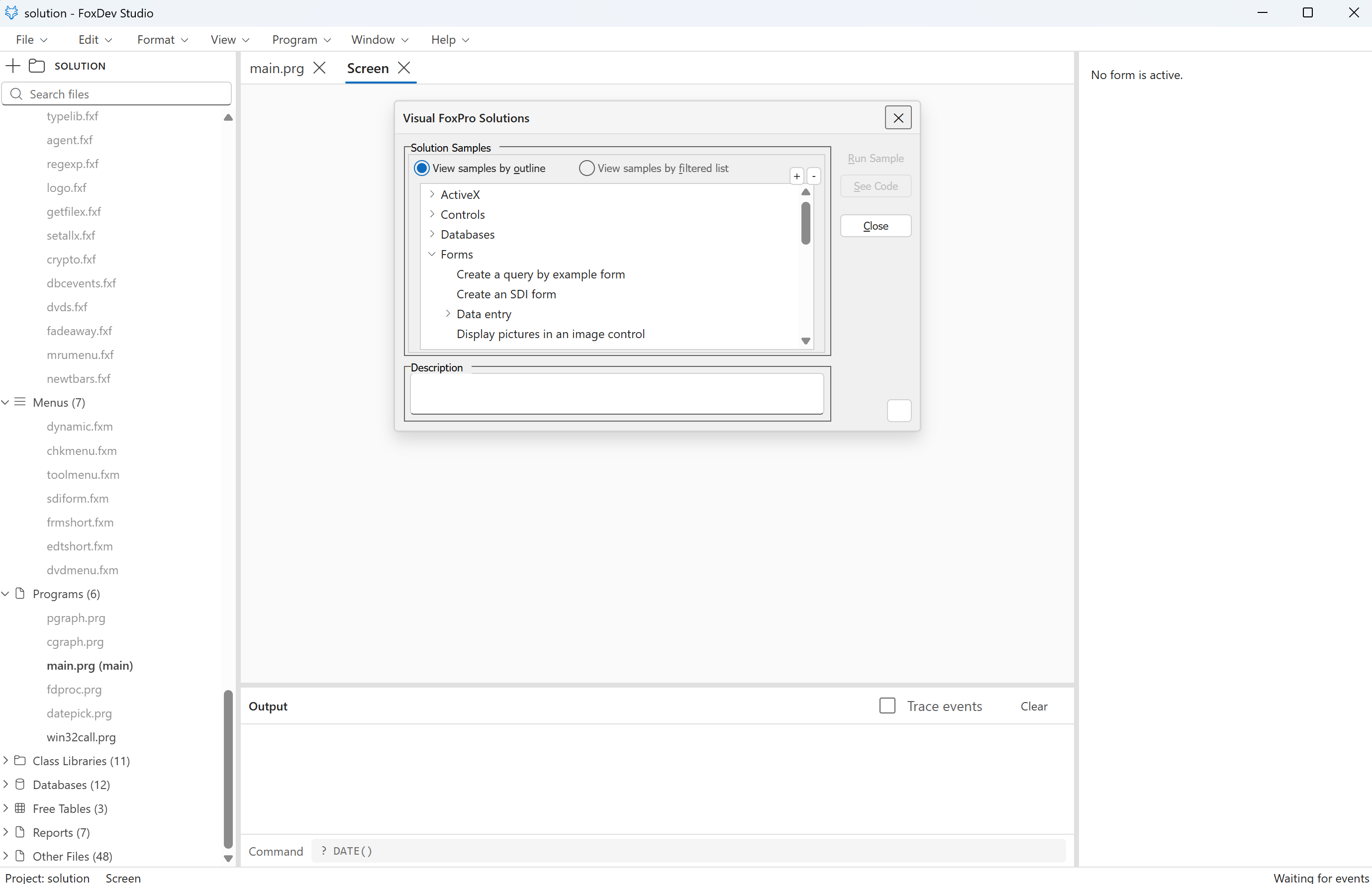
A bigger project, running: Visual FoxPro's own Solution sample after
import, with its 123 forms, 7 menus and 11 class libraries
in the explorer and its launcher form live on the Screen tab. READ EVENTS is what the
status bar's "Waiting for events" means.
Run something
| Key | What it does |
|---|---|
| Ctrl+E | Run the form in the designer. It appears on the Screen tab, live, and its methods execute. |
| Ctrl+D | Run the program in the editor, as DO would. |
| F5 | Run the project's main item. |
| Shift+F5 | Cancel whatever is running, closing its forms, its tables and any HTTP server it opened. |
| Ctrl+F2 | The Command Window. Type a line, press Enter, and it runs against the live session. |
| Ctrl+Shift+D | The debugger: breakpoints, step into, over and out, the call stack, and the variables of each frame. |
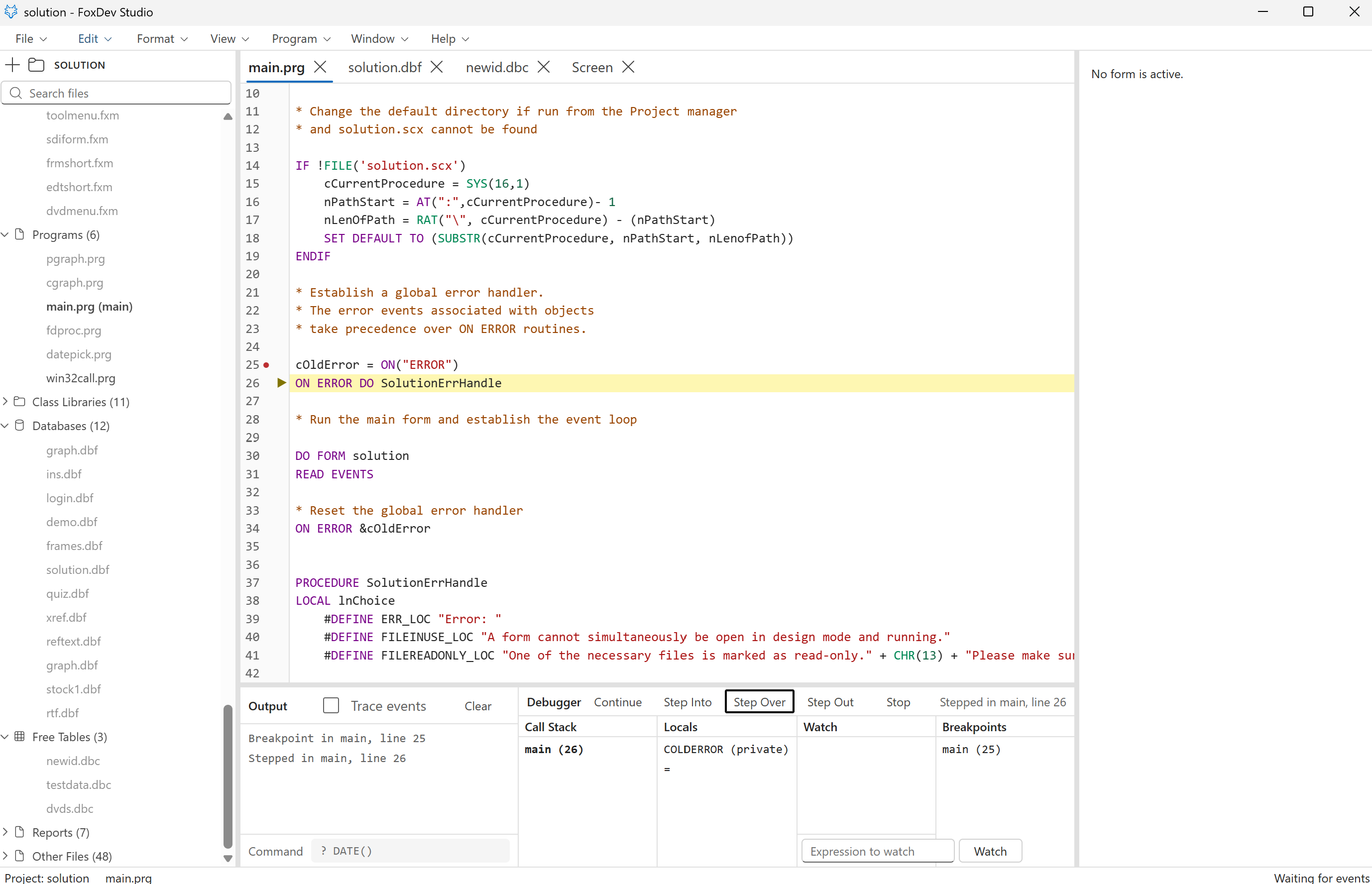
The debugger in the Solution sample's main.prg, one Step Over past a breakpoint on line 25:
the current line is highlighted, and the panel below shows the call stack, the locals of the
frame (here a PRIVATE, which the debugger says so), a watch box and the breakpoints. Step
Into, Step Over and Step Out work the way they always did.
The Output window shows what ? prints, and an event trace toggle lists every event as it
fires. MESSAGEBOX(), INPUTBOX() and WAIT WINDOW park the running program until they are
answered without freezing the IDE, which is the first thing the virtual machine was
built to do.
A menu runs too: DO Main.fxm from the Command Window installs the menu bar, and each item
executes its command or its procedure text.
Open a table
A .dbf or a .dbc opened in the IDE shows in a table browser: double-click a cell to edit it,
click a record number to mark it deleted.
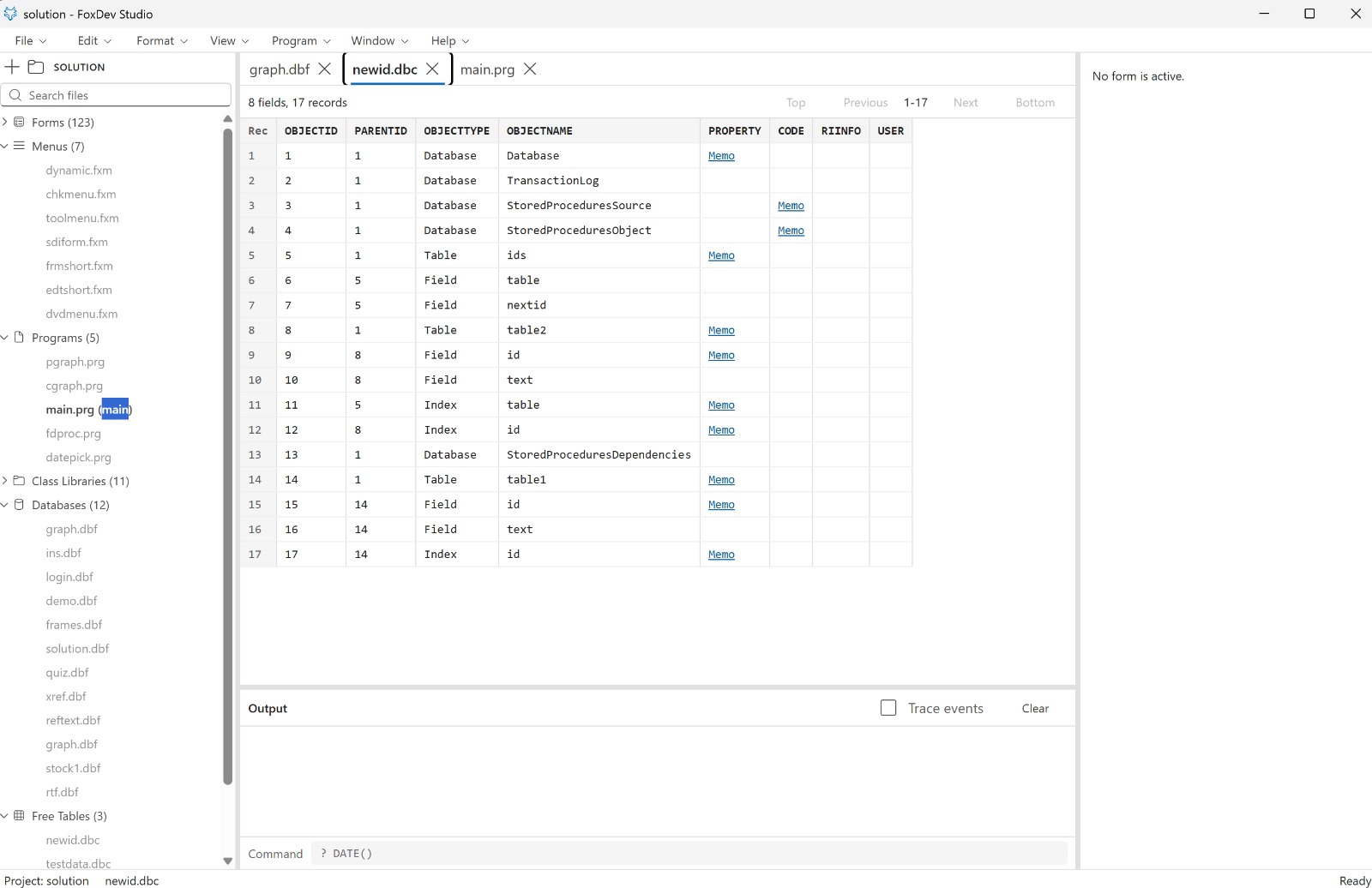
A database container is a table too, and opens the same way: this one has 17 records describing its tables, fields and indexes, with the memo fields a click away. From a program or the Command Window the data engine is the ordinary one:
USE customer
SCAN FOR country = "UK"
    ? custno, company
ENDSCAN

SELECT custno, SUM(amount) AS total ;
    FROM orders ;
    GROUP BY custno ;
    ORDER BY total DESC ;
    INTO CURSOR c_top
Tables are read and written in place, never loaded into memory, with 64-bit offsets throughout. A table can therefore grow past the two gigabytes Visual FoxPro stops at. Before you rely on that, know that a table grown past two gigabytes will no longer open in Visual FoxPro: if you still work in both, that is a one-way door.
Import a Visual FoxPro project
File, Import Visual FoxPro Project... reads a .pjx and the .scx, .vcx, .mnx and
.prg files it names, and writes the JSON documents the IDE works on beside them. Forms keep
their Visual FoxPro property names and store only the values that differ from the defaults, so
the mapping is direct. A project that keeps shared classes and data in folders beside its own -
..\classes\samples.vcx is the usual shape - is read from there as well.
What the import cannot carry is listed by name rather than left silent: the reference pages that
depend on things that are gone (the 16-bit overlays, the FoxPro 2.x screen designer) are
answered with a reason, and docs/not-supported.md is the short list of what is refused on
purpose.
Ship it
Build App... (Ctrl+Shift+B) compiles the whole project to
bytecode and writes an .fxa bundle: plain JSON carrying every program and form's bytecode, the
menus, which item is main, and the VM version it was built by. A HelloWorld bundle is a few
kilobytes.
Build Executable... wraps that bundle in a copy of the installed runtime and produces a
folder with <Name>.exe in it. That folder runs the application with no IDE and nothing to
install. A packaged application finds its bundle at resources/app.fxa and starts in player mode
on its own; the IDE can also be told to play one directly:
FoxDevStudio.exe --play app.fxaRun without a screen
Two environment variables drive the IDE from a script, which is how its own screenshots are taken:
FOXDEV_OPEN=$PWD/resources/samples/HelloWorld.fxproject FOXDEV_SCREENSHOT=/tmp/foxdev.png npm run devFOXDEV_OPEN (or a .fxproject on the command line) opens a project and its main item at
startup. FOXDEV_SCREENSHOT saves the window after FOXDEV_SCREENSHOT_DELAY milliseconds
(2500 by default) and exits. FOXDEV_PLAY=/path/app.fxa runs a bundle instead of the IDE.
For a program with no interface at all there is the command-line runner, foxvm, described
under Required tooling: foxvm run, foxvm check and foxvm disasm.